How to Convert Figma to WordPress Elementor

Rebuild the approved design as editable Elementor content, then compare the result in a browser. A reliable conversion needs source inspection, responsive decisions and separate tests for functionality.

Published 25 October 2026 · Syed Rizwan Khan

Gather the source and decisions

Request approved Figma pages, exportable assets and licensed fonts. List desktop and mobile screens, repeated components, hover states and prototype interactions. Record missing information before estimating the build. A screenshot cannot reveal private APIs or form processing.

Create a page inventory with section order, shared navigation, content ownership and special behavior. Separate visual requirements from working application features.

Map the design into native widgets

Use heading, text, image, list and button widgets for ordinary content. Group repeated patterns into reusable sections. For a classic Elementor layout, preserve the section, column and widget hierarchy. Keep custom code focused on interactions that need it.

Check whether the owner can change a headline, replace an image and update a link through the visual editor. A single HTML widget containing the whole page usually leaves these tasks outside the intended editing workflow.
Establish the design system

Record font family, weight, line height, letter spacing and the heading scale. Reuse the existing site colors and typography. Add local overrides only for design exceptions, and inspect theme and widget overrides before changing a shared token.

Use the intended fonts. Different letter widths can change line wrapping and section height even when the font size matches. Agree substitutions instead of silently treating them as equivalent.

Implement responsive intent

A desktop frame defines one width, not every mobile rule. Specify column stacking, content order, image crops and navigation. Test long headings, buttons and URLs between the supplied frame sizes.

If mobile screens are absent, propose the adaptation for review. Do not hide essential information just to make an overcrowded layout fit.

Compare and test

Use equivalent viewport dimensions and zoom. Check widths, typography, spacing, imagery, borders and interaction states against the source. A valid template file is not visual verification.

Test keyboard focus and navigation. Record visual checks separately from actual email delivery, payment or database tests. A button that opens a booking page does not prove the booking system works.

Handover and launch

Confirm titles, descriptions, headings and internal links. Check live canonicals, indexing directives and sitemap membership. If replacing a site, map any changed URL to its relevant destination.

Give the owner an editing walkthrough and identify custom code, licenses and integration settings that need maintenance. Avoid promising a ranking or performance score based on a visual match.

Documentation and next steps

Refer to Elementor Site Settings and responsive editing for current controls.

Related: editable templates and responsive breakpoints. For implementation, see Figma-to-Elementor development.

Have a design you need built?

Send the source design, website URL and required functionality. Scope and turnaround are confirmed after review.

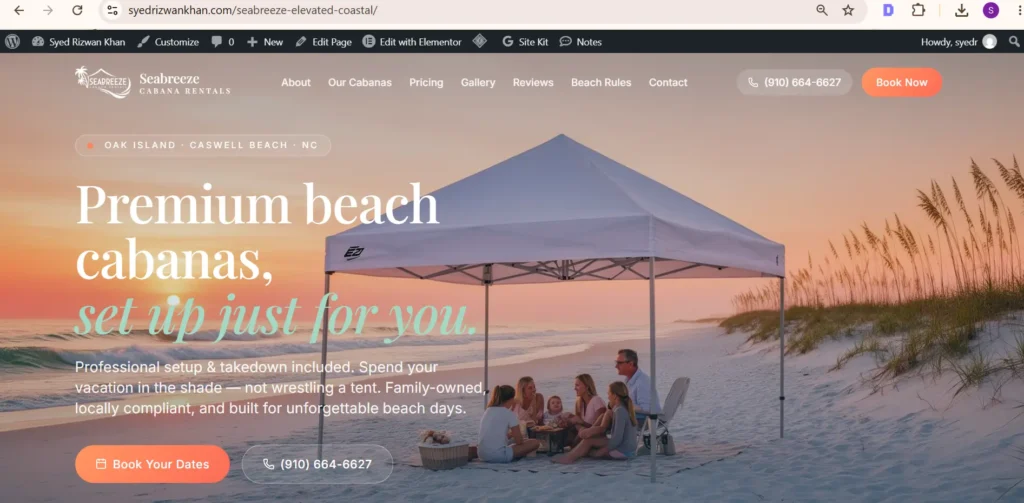
Seabreeze WordPress Elementor recreation with the matching beach cabana hero and booking buttons
Seabreeze frontend reconstruction demonstration — a React/Lovable interface rebuilt in WordPress; shown as a demonstration, not a commissioned Figma project.
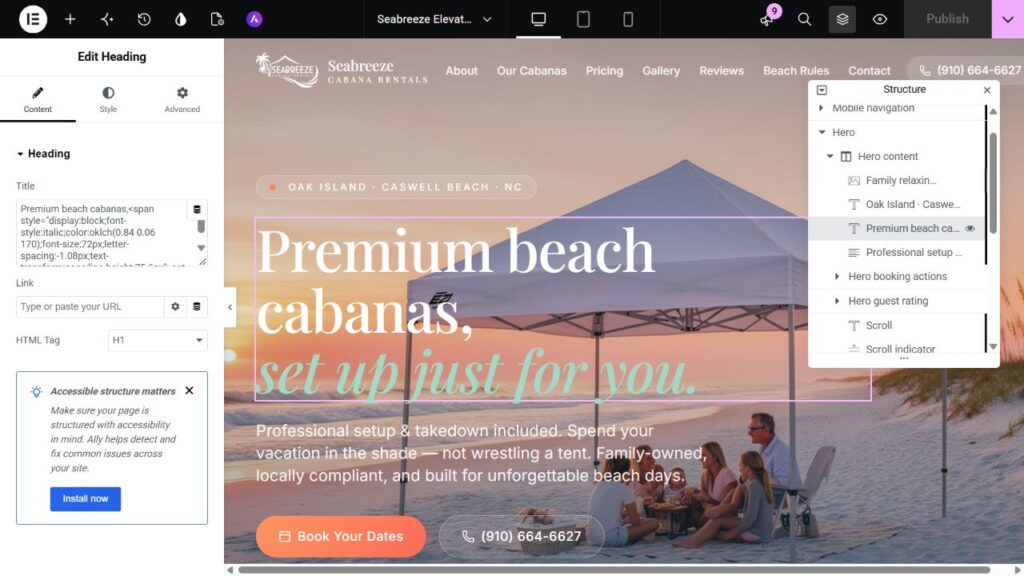
Seabreeze homepage open in Elementor, showing the editable hero H1 and classic section, column and widget hierarchy.
Genuine Elementor editor capture: the Seabreeze hero H1 is a native Heading widget in classic sections and columns. Visual matching and CMS editability are checked separately.
Scroll to Top